Sharpen Image
Sharpen any photo — recover edge detail from soft or slightly blurred images while preserving natural texture.
Click to upload an image
or drag and drop
Running a quick security check…
What It Does
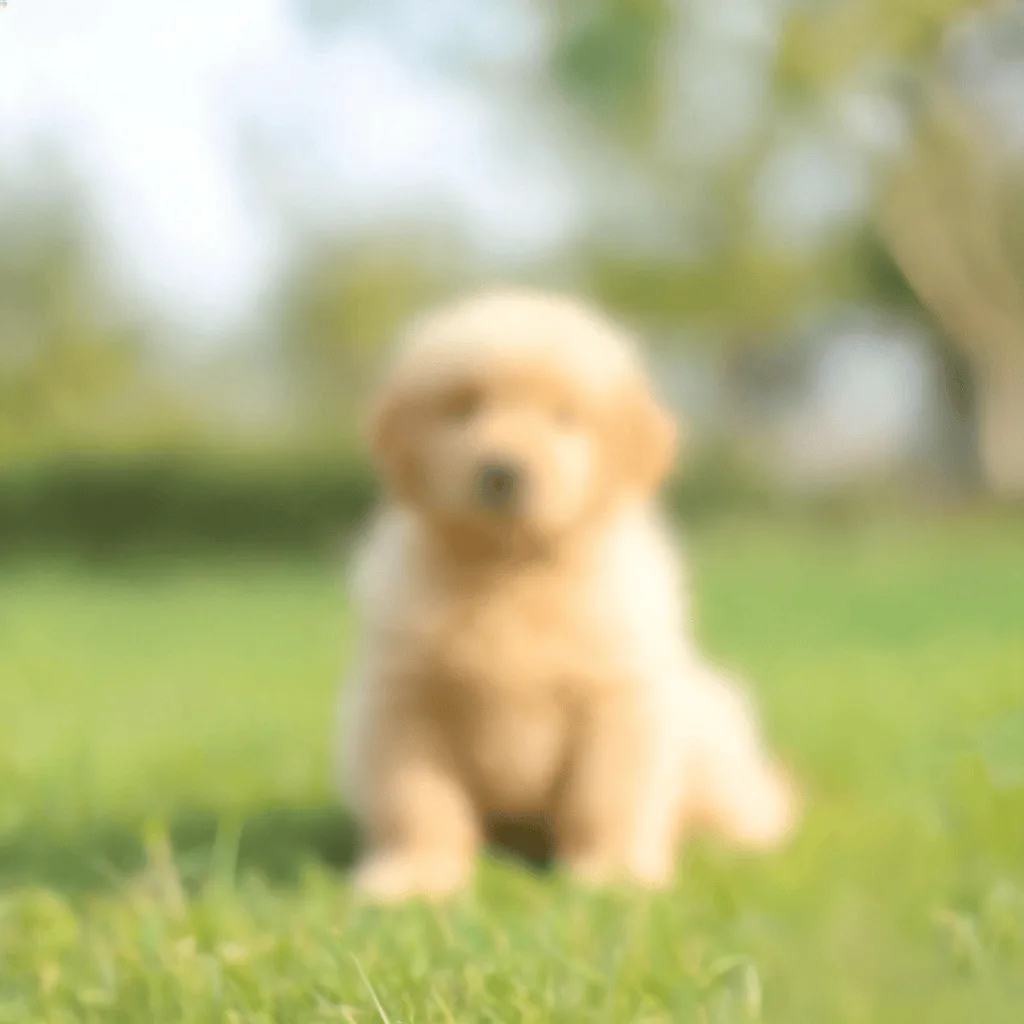
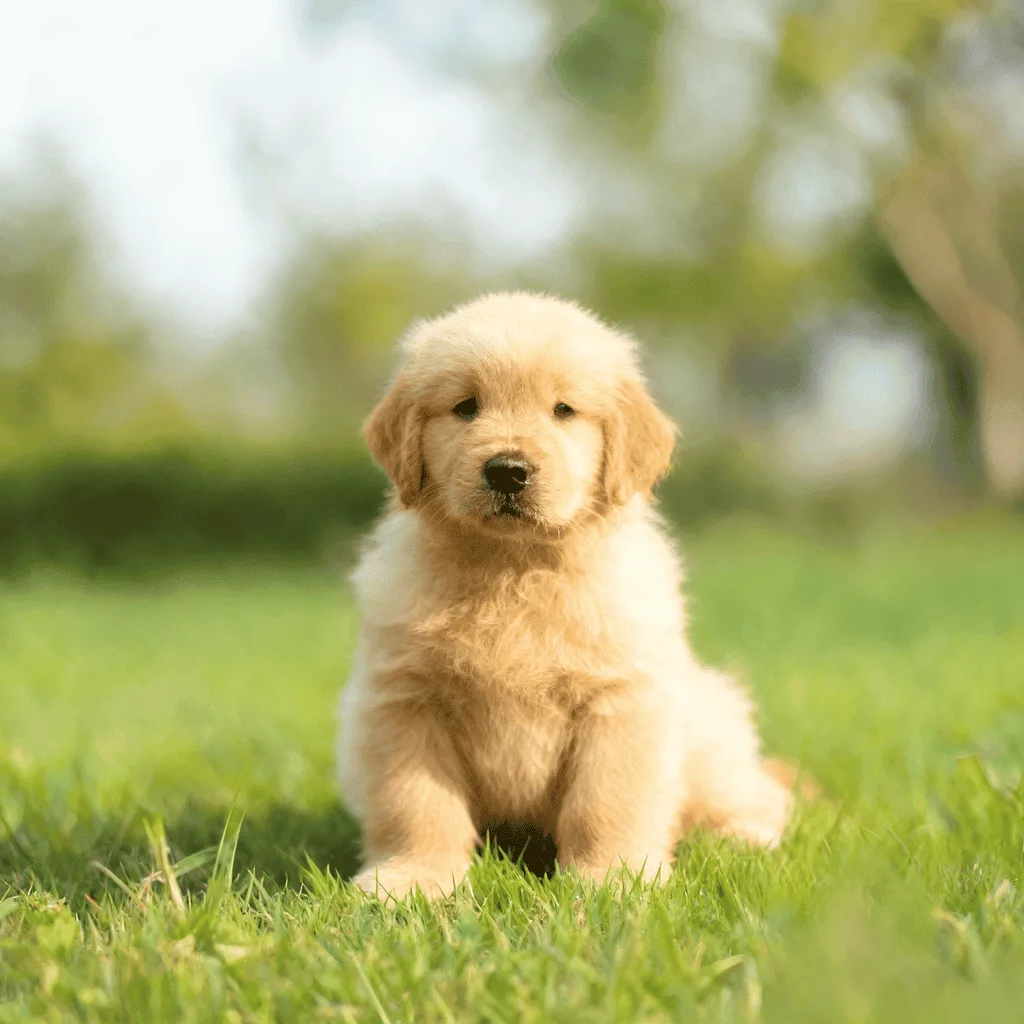
About Sharpening Images
Sharpening is the standard correction every photo editor learns first — increase local contrast at edges so the image reads crisper, recover detail lost to soft focus or motion, and bring back the snap that compression and resizing take away. Our AI runs that operation with care: it boosts edge contrast where the image needs it and holds back on smooth areas so skin and sky stay clean, avoiding the harsh halo of brute-force sharpening. Use it for restoring slightly out-of-focus photos, prepping images for print where soft scans lose detail, cleaning up screenshots and old digital photos, and rescuing crucial moments captured handheld at low shutter speed.
How to Sharpen a Photo
Upload Your Photo
Choose the photo you want to sharpen. Slightly soft photos recover fully; heavily blurred photos can only be partially rescued.
Sharpen & Inspect
Run the sharpening pass and inspect at 100%. Check that edges have crisped, halos haven't appeared around contrast boundaries, and skin or smooth areas haven't gone noisy.
Refine & Download
Re-run with stronger or gentler sharpening as needed. Download the result for print, web, or further editing in your photo workflow.